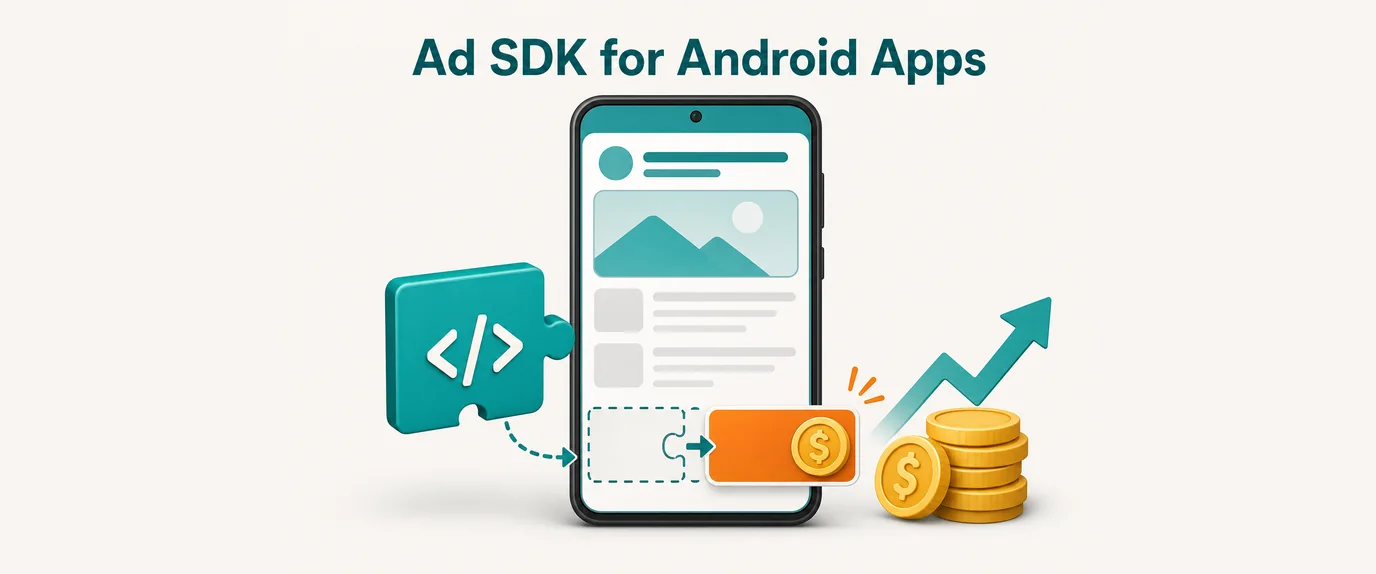
An ad SDK is a library you add to your app so it can request, show and count ads from an ad network. Its job is to turn your app’s users into ad revenue without you building an ad server. Which SDK you choose decides how much you earn per user. How you integrate it decides whether that revenue costs you crashes, slow screens and bad reviews.
This guide is for Android developers and app owners who are choosing a monetization SDK. It covers what the SDK actually does, network SDKs vs mediation, how to compare options, the integration steps that matter, and the numbers to watch after launch.
What an ad SDK does inside your app
From your code it looks like a few calls: initialize, load an ad, show it. Under the hood, the SDK handles the whole cycle for every impression:
- Ad request. The SDK sends the ad server what it needs to pick an ad: placement, format, device, OS version, country, and (with consent) the advertising ID.
- Auction or selection. The network picks the best-paying ad, either from its own advertisers or through a real-time auction.
- Loading and caching. Creatives (images, video, HTML) are downloaded and cached so the ad is ready when the user reaches the placement.
- Rendering. The SDK draws the ad in a banner view, a full-screen activity, or your native layout.
- Tracking. Impressions, clicks and video completions are reported back. This is what you get paid for.
- Consent and privacy. The SDK reads the user’s consent signal and limits data collection if the user said no.
All of this runs inside your app’s process, with your app’s memory, network and battery. That is why SDK quality matters as much as the eCPM it promises.
Ad network SDK vs mediation SDK
There are two kinds of monetization SDKs, and most apps end up using both.
| Ad network SDK | Mediation SDK | |
|---|---|---|
| What it is | Connects your app to one network’s demand | Connects many networks and picks the best ad for each impression |
| How the winner is chosen | The network’s own selection | Waterfall (networks asked one by one) or in-app bidding (all networks bid at once) |
| Good for | Small apps, one main market, simple setup | Apps with traffic in many countries, where no single network fills everything at a good price |
| Cost | One integration | Mediation SDK plus an adapter for every network you add |
| Risk | Low fill in markets the network doesn’t cover well | More code, more dependencies, more things to update |
In-app bidding works like real-time bidding on the web: every connected network bids for the impression at the same moment, and the highest bid wins. It usually beats a manually tuned waterfall because prices update per impression rather than per setting.
Ad formats in apps and where each fits
| Format | What the user sees | Where it fits |
|---|---|---|
| Banner | A strip at the top or bottom of the screen | Utility and reading apps with long screen time; low revenue per impression |
| Interstitial | A full-screen ad between screens | Natural breaks: after a level, after a finished task. Never in the middle of an action |
| Rewarded | A video the user chooses to watch for a reward | Games and freemium apps; highest eCPM and the least annoying, because the user opts in |
| Native | An ad styled like your own content | Feeds, lists, content apps; needs careful layout work and a visible “Ad” label |
| App open | A full-screen ad when the app starts or returns from background | Apps opened many times a day; cap the frequency or it hurts retention |
How to choose an ad SDK: 8 checks
Ignore the headline eCPM on a network’s landing page. It comes from their best countries and formats, not yours. Check these instead:
- Demand in your countries. Ask for eCPM and fill rate in your top 5 GEOs for your formats, or run a test on part of your traffic. A network strong in the US can be weak in India or Brazil.
- Formats you need. Rewarded and native are not supported everywhere, and native quality varies a lot.
- Mediation and bidding support. If you plan to use mediation, check that the network has an official adapter for your mediation platform, ideally with bidding.
- Weight and startup cost. Build your app with and without the SDK and compare the size of the release bundle and cold start time. Check which libraries it pulls in transitively (OkHttp, Play Services, ExoPlayer and so on). Version conflicts there are a common source of crashes.
- Stability. Ask how often the SDK is updated and look at its changelog. A good SDK has regular releases with fixes for new Android versions. Check reviews from other developers for crash and ANR reports.
- Privacy and policy compliance. The SDK must read TCF consent signals and be declared correctly in Google Play’s Data safety form. If your app is for children, use only SDKs self-certified under Google Play’s Families policy.
- Payments. Payment schedule, minimum payout, payment methods, and whether earnings are ever held back.
- Reporting and support. Reports by country, format and placement, a reporting API for your own dashboards, and a person who answers when fill drops.
How to integrate an ad SDK on Android
Every network has its own API, so follow its documentation for exact calls. The steps below apply to any SDK and are where most integrations go wrong.
1. Add the dependency from the official source
Add the SDK through Gradle from the vendor’s official repository (Maven Central, Google Maven, or the repository URL in the vendor’s docs). Pin an exact version instead of a “+” range, so a new release can’t change your build without you knowing.
2. Collect consent before the first ad request
For users in the EEA, the UK and Switzerland, Google requires publishers who serve its ads to use a Google-certified consent management platform (CMP) that supports the IAB TCF framework. Other networks rely on the same TCF signal. Show the consent form first, then initialize the ad SDK and request ads. Otherwise you get untargeted, low-paying ads or no ads at all in Europe.
3. Initialize once, early, and off the main thread if the SDK allows it
Initialize in your Application class, not in every activity. If the SDK supports background initialization, use it. Heavy work on the main thread at startup is a direct path to ANRs.
4. Use test ads while you build
Register your devices as test devices or use the network’s test ad units. Clicking your own live ads can get the account flagged for invalid traffic and suspended.
5. Place ads at natural breaks and cap frequency
Preload full-screen ads before the moment you need them, so the user never waits. Show interstitials at transitions, not on app launch and not over a button the user is about to tap. Set a frequency cap: one full-screen ad every few minutes is a common starting point. Then tune it against retention, not just revenue.
6. Respect the lifecycle
Pause and resume banner views with the activity, and destroy banner and native ad objects in onDestroy(). An ad view that keeps a reference to a closed activity leaks memory. Over a long session, that ends in lag and out-of-memory crashes. Run LeakCanary in debug builds to catch this early.
7. Add the R8/ProGuard rules
Many SDKs use reflection. If the vendor’s keep rules are missing, R8 can strip or rename classes the SDK needs, and ads silently stop working only in release builds. Copy the rules from the docs and test a release build, not just debug.
8. Publish app-ads.txt
app-ads.txt is a text file that lists which ad networks are allowed to sell your app’s inventory. It sits at the root of the developer website listed on your Google Play page. Many buyers don’t bid on inventory they can’t verify, so a missing or outdated file costs revenue. Update it every time you add a network.
9. Update your Google Play declarations
In Play Console, mark that the app contains ads. Update the Data safety form with the data the ad SDK collects: most collect device identifiers and approximate location. The vendor usually documents what to declare.
10. Roll out gradually and watch Android vitals
Release the version with ads to a small share of users first. Google Play can lower visibility for apps above its bad behavior thresholds: a 1.09% user-perceived crash rate and a 0.47% user-perceived ANR rate overall. If either jumps after the SDK goes in, stop the rollout before it reaches everyone.
Metrics to watch after launch
- eCPM: revenue per 1,000 impressions, by country and format.
- Fill rate: the share of ad requests that returned an ad. Low fill in a big market is the main reason to add a second network or mediation.
- Impressions per DAU: how many ads an average daily user sees.
- ARPDAU: ad revenue divided by daily active users. The number that combines all of the above.
- Retention and session length: compare users with ads to users without, or before and after a change. Revenue that drives users away is borrowed, not earned.
- Crash and ANR rate: in Android vitals, filtered by app version.
For mediation setups, our guide to eCPM optimization with floor prices and GEO mix covers the next step.
Common mistakes
- Too many SDKs. Every network you add means more weight, more dependencies and more crash risk. Add one only when data shows it improves fill or eCPM in markets you care about.
- Requesting ads before consent. In Europe this means low-paying ads or none, and a compliance problem.
- Showing an interstitial on launch. It is the fastest way to raise uninstalls.
- Testing only debug builds. Missing R8 rules show up only in release.
- Never updating the SDK. Old versions break on new Android releases and miss demand that newer versions support.
- Forgetting app-ads.txt after adding a new network.
Monetizing app traffic with GTaro Ads
GTaro Ads works with app publishers individually. If your app has steady traffic, contact us through the publisher page with your app, top GEOs and daily users, and we’ll suggest an integration that fits your app and Google Play policies.
FAQ
What is a monetization SDK?
It is a library that connects your app to ad demand. It requests ads, shows them and reports impressions, so you get paid for ads shown to your users.
Do I need mediation from day one?
Usually not. Start with one network that is strong in your main countries. Add mediation when reports show low fill or weak eCPM in markets with a meaningful share of your users.
Will an ad SDK slow down my app?
It adds size and some startup work, and a badly integrated one can cause lag and ANRs. Measure bundle size and cold start with and without the SDK. Initialize it in the background if possible, and destroy ad views with their activities.
Do I need user consent to show ads?
For users in the EEA, the UK and Switzerland, yes: you need a Google-certified CMP for Google demand, and other networks read the same TCF consent signal. Other regions have their own privacy laws, so check where your users are.
How do I add an ad SDK in Android Studio?
Add the vendor’s repository and dependency to your Gradle files and sync. Then add the app ID to AndroidManifest.xml if the vendor requires it, and initialize the SDK in your Application class. After that, load and show ads with the vendor’s test ad units. The exact names differ by network, so follow its quick-start guide and keep steps 2–9 above in mind.