How do you create an advertising campaign?
Short answer: In the advertiser cabinet, open "New campaign", choose a format and complete its form. The steps below cover "Pop ads". Other formats have separate forms; ask support about settings not described here.
How do you choose a format?
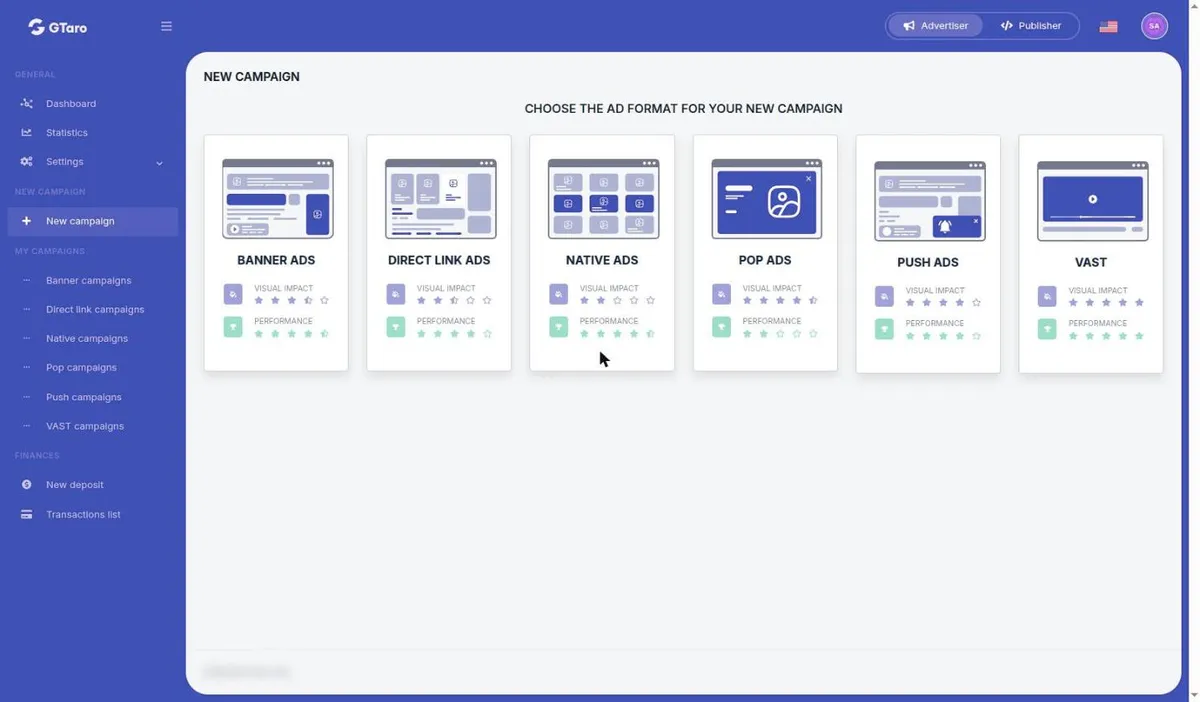
- Sign in at the cabinet, select "Advertiser" using the top-right switch and open "New campaign". The page "Choose the ad format for your new campaign" offers "Banner ads", "Direct link ads", "Native ads", "Pop ads", "Push ads" and "VAST". Choose "Pop ads" to follow this guide.
Which settings do you enter for a pop campaign?
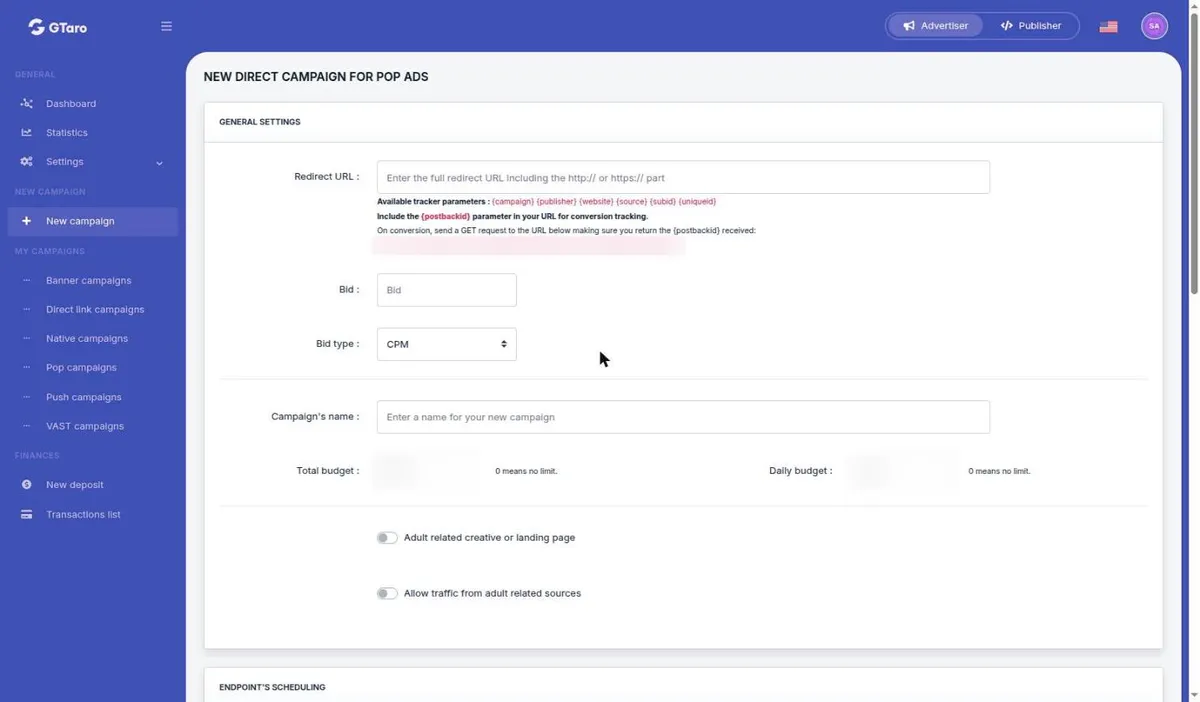
- In "New direct campaign for pop ads", complete "GENERAL SETTINGS". Enter a full "Redirect URL" beginning with http:// or https://. Set "Bid", select "Bid type" from "CPM" or "CPV", and enter "Campaign's name". Set "Total budget" and "Daily budget"; the daily-budget note says "0 means no limit". Review "Adult related creative or landing page" and "Allow traffic from adult related sources".
- Under "ENDPOINT'S SCHEDULING", review "Start date", "End date" and the weekday-and-hour "Dayparting" grid. Quick selections are "All", "Weekend", "Working Days", "Business Hours" and "Clear All". The form says that if no hours are selected, the endpoint runs permanently.
- Under "TARGETING", review "Geotargeting", "Platform targeting", "OS targeting", "Browser targeting", "Category targeting" and "Source targeting". Choices include worldwide or specific countries, all or specific platforms and categories, and network-wide traffic or specific supply endpoints. Review your settings, then click "Add campaign".
You are responsible for content and compliance in every targeted country under section 5.4 of the Terms. Classify adult content correctly: section 4.4 separates mainstream and adult campaigns and permits adult creatives only on sources marked as adult. Review section 7 for prohibited content.
For conversion tracking, follow the postback guide. Incorrectly reported conversions are not counted under section 5.5.
Where do you manage campaigns and their budgets?
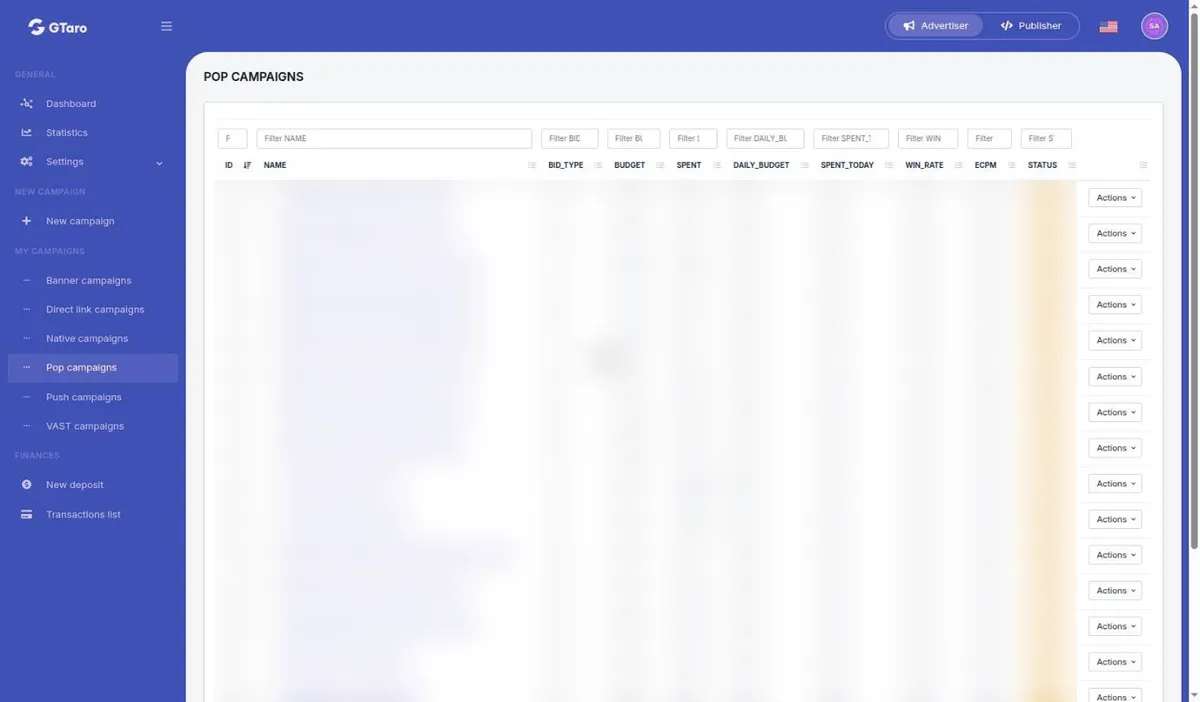
- Open "Pop campaigns" under "MY CAMPAIGNS". The list includes budget, spend and "STATUS" columns. Each row's "Actions" menu includes "Activate campaign", "Detailed view", "Duplicate campaign", "Edit campaign", "Adjust budget" and "Delete campaign".
- Choose "Adjust budget" to open "Budget settings". Review read-only "Account funds" and "Campaign's budget". Under "Action", select "Add funds" to move account funds into the campaign budget, or "Retract funds" to move them back. Enter the USD "Amount" and click "Confirm".
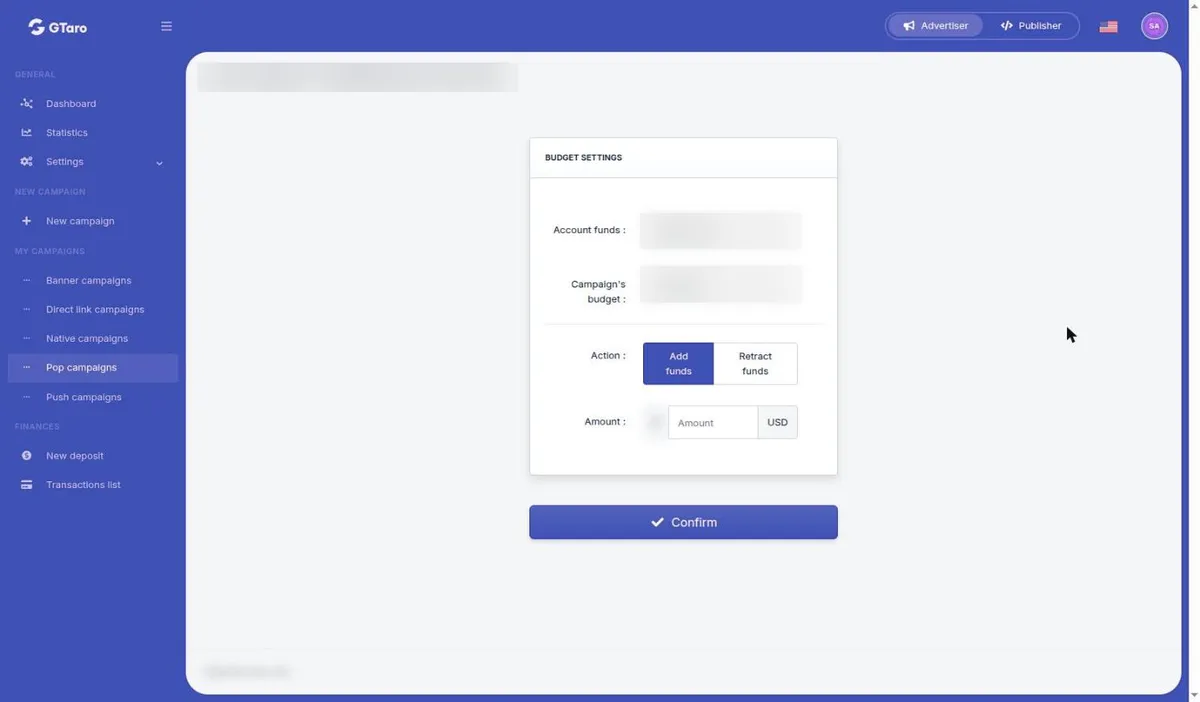
Retracting campaign funds returns them to your account balance, not to your bank or wallet: account funds cannot be withdrawn under Terms section 5.6.
What if something goes wrong?
Campaigns and creatives are reviewed before and during delivery and may be rejected, paused or removed, including after approval. Prepaid campaigns stop when the available account balance runs out. Review your balance and contact support about an unclear status, moderation decision or unexpected budget result. Moderation time is not fixed in the Terms, so ask support if a campaign waits for a long time.
Ready to work in the cabinet? Did not find your answer? Contact support:
Please include your account email and the campaign or site ID, never your password.


