Short answer: Start at the registration page, then select "Publisher" in the cabinet. Add your website through "Websites", create a supply endpoint and open "Get code". Send traffic only from sources you own or may monetise and that GTaro Ads has approved.
Register with accurate, current details and keep them updated. The Terms require business use and allow GTaro Ads to request verification documents under section 3.3. Creating an account means accepting the Terms; if acting for a company, you must have authority to bind it.
Fill in the registration form with your details. Contact support if registration or verification is unclear. Once in the cabinet, use the top-right switch to select "Publisher".
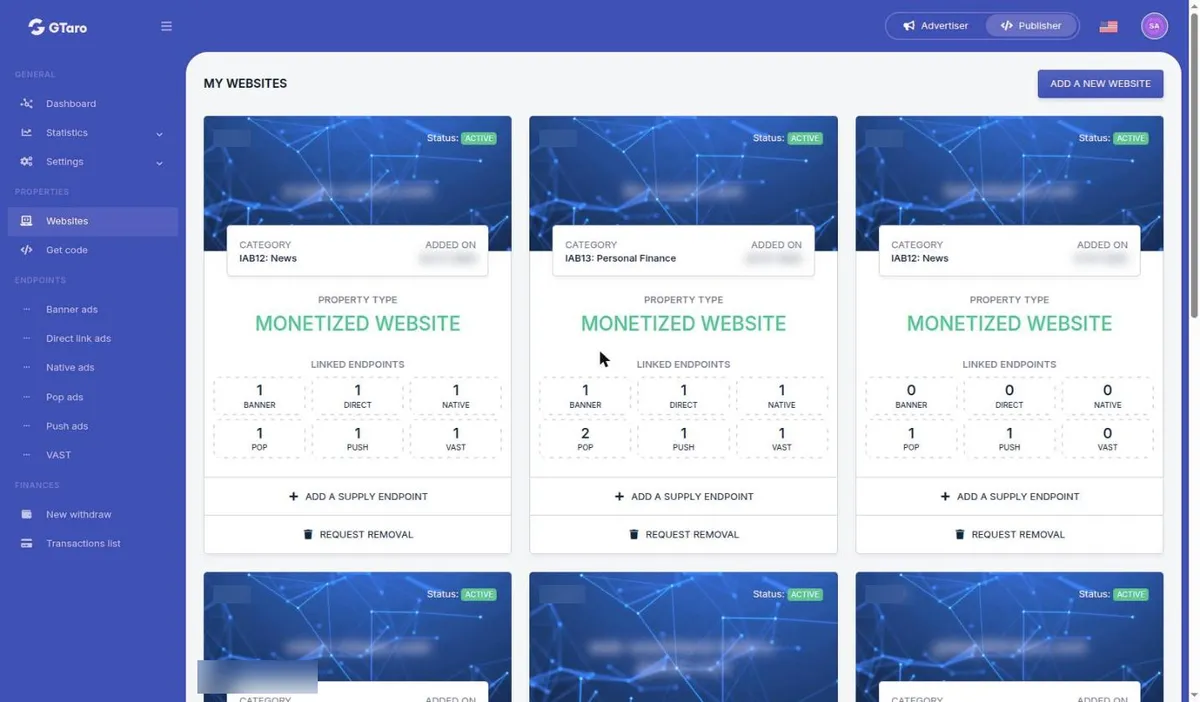
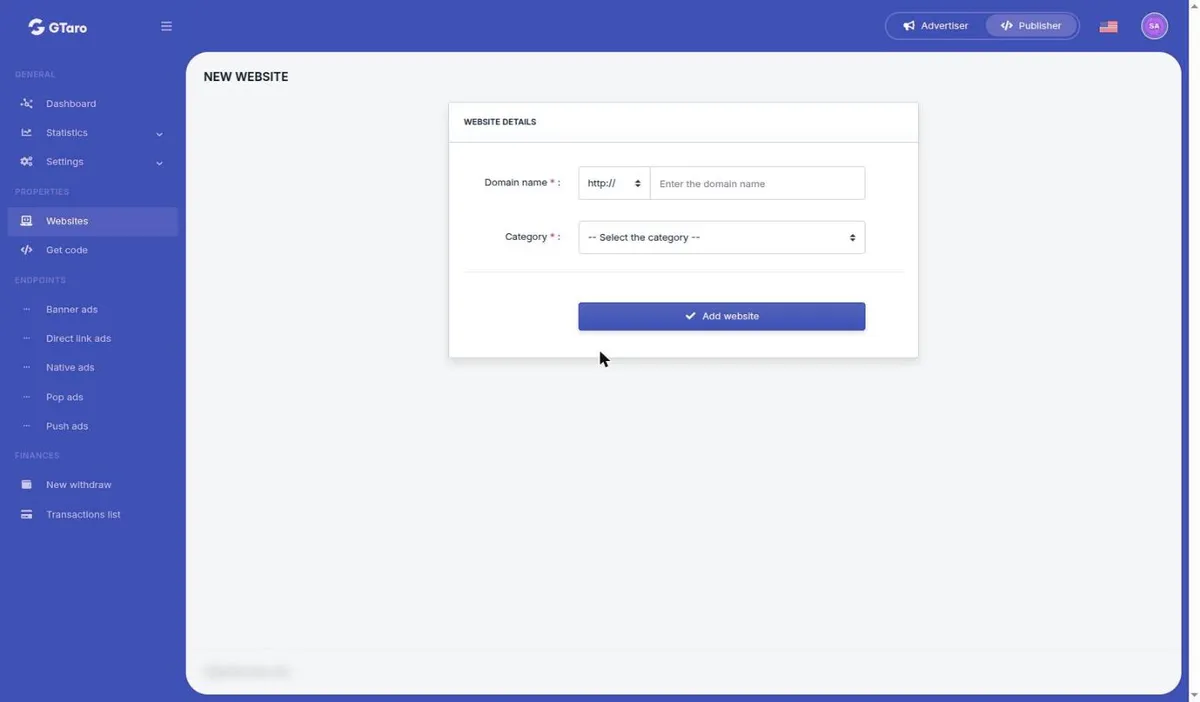
Section 4.4 requires correct classification and separates mainstream and adult traffic. Adult creatives may be served only on sources marked as adult. Section 7.1 prohibits illegal content and other listed harmful content, including sexual content involving minors, non-consensual sexual content, malware and phishing. Ask support how to classify an adult source if the available choices are unclear.
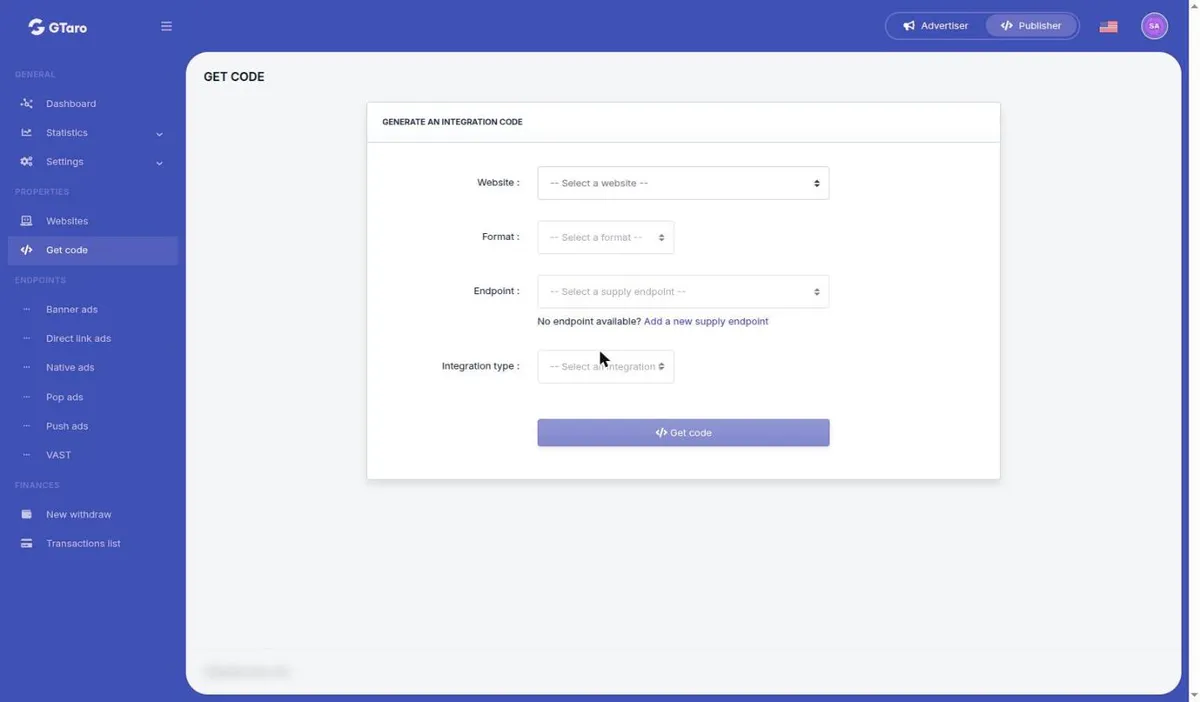
Format choices are "Banner", "Direct link", "Native", "Pop", "Push" and "VAST". Integration types listed are "XML feed", "JSON feed", "Direct link", "JavaScript code" and "oRTB 2.5". Ask support which integration type suits your site and how to install the code.
Website cards have a "Status" field, for example "ACTIVE". Approval time for a new site is not fixed in the Terms, so ask support whether your declared source is approved before sending traffic; registration alone does not establish approval under Terms section 6.1.
Tell GTaro Ads if the nature of an approved source changes. Do not send Invalid Traffic or place misleading, hidden or forced-click ads under sections 7.2 and 6.6. If verification remains incomplete, prepare the requested documents; access may be suspended until verification is complete.


